# How To Deposit $pumpBTC To Corn

If users want to deposit $pumpBTC into Corn, they must ensure that they hold $pumpBTC on the Ethereum chain. To learn how to mint $pumpBTC on the Ethereum chain, you can refer to this tutorial.

{% content-ref url="how-to-mint-usdpumpbtc-on-the-ethereum-mainnet" %}
[how-to-mint-usdpumpbtc-on-the-ethereum-mainnet](https://pumpbtc.gitbook.io/pumpbtc/step-by-step-guides/how-to-mint-usdpumpbtc-on-the-ethereum-mainnet)
{% endcontent-ref %}

Today, I will show you how to deposit $pumpBTC into Corn.

**Step1:** Open the [URL](https://usecorn.com/app), click the **‘LOG IN’** button, link your wallet, and make sure the network is set to Ethereum Mainnet.

<figure><img src="https://1508034360-files.gitbook.io/~/files/v0/b/gitbook-x-prod.appspot.com/o/spaces%2FATMz4vtiiTKoraOnqc0H%2Fuploads%2FiWTU1SxgFrLOlOqK67Ep%2Fimage.png?alt=media&#x26;token=6a38b6cb-9cce-47e9-a622-0c3fe235f629" alt=""><figcaption></figcaption></figure>

**Step2:** Scroll down the page, find the **‘$pumpBTC’** assets, and click the **‘DEPOSIT ON CORN’** button.

<figure><img src="https://1508034360-files.gitbook.io/~/files/v0/b/gitbook-x-prod.appspot.com/o/spaces%2FATMz4vtiiTKoraOnqc0H%2Fuploads%2F6WsjR11p8EfbEc4wZwMj%2Fimage.png?alt=media&#x26;token=08333418-5430-441f-861c-d3067b9ffd19" alt=""><figcaption></figcaption></figure>

**Step3:** Enter the amount you want to deposit, click the **‘DEPOSIT’** button on the page, then click the **‘APPROVE’** and complete the pumpBTC deposit transaction in your wallet.

<figure><img src="https://1508034360-files.gitbook.io/~/files/v0/b/gitbook-x-prod.appspot.com/o/spaces%2FATMz4vtiiTKoraOnqc0H%2Fuploads%2F3DfDP1GIgTFWA8y0dCWe%2Fimage.png?alt=media&#x26;token=a37ed7ba-42a0-4aba-8db9-95298574de76" alt=""><figcaption></figcaption></figure>

<figure><img src="https://1508034360-files.gitbook.io/~/files/v0/b/gitbook-x-prod.appspot.com/o/spaces%2FATMz4vtiiTKoraOnqc0H%2Fuploads%2F3ny2a9kUoartBYUBgySN%2Fimage.png?alt=media&#x26;token=f3b4305d-c436-49a6-8937-b1e12fef16e7" alt=""><figcaption></figcaption></figure>

<figure><img src="https://1508034360-files.gitbook.io/~/files/v0/b/gitbook-x-prod.appspot.com/o/spaces%2FATMz4vtiiTKoraOnqc0H%2Fuploads%2FbfNmbYfLwHzmcsTRWmV2%2Fimage.png?alt=media&#x26;token=5ef8b434-b373-4e5a-9a0d-bcc4583707aa" alt=""><figcaption></figcaption></figure>

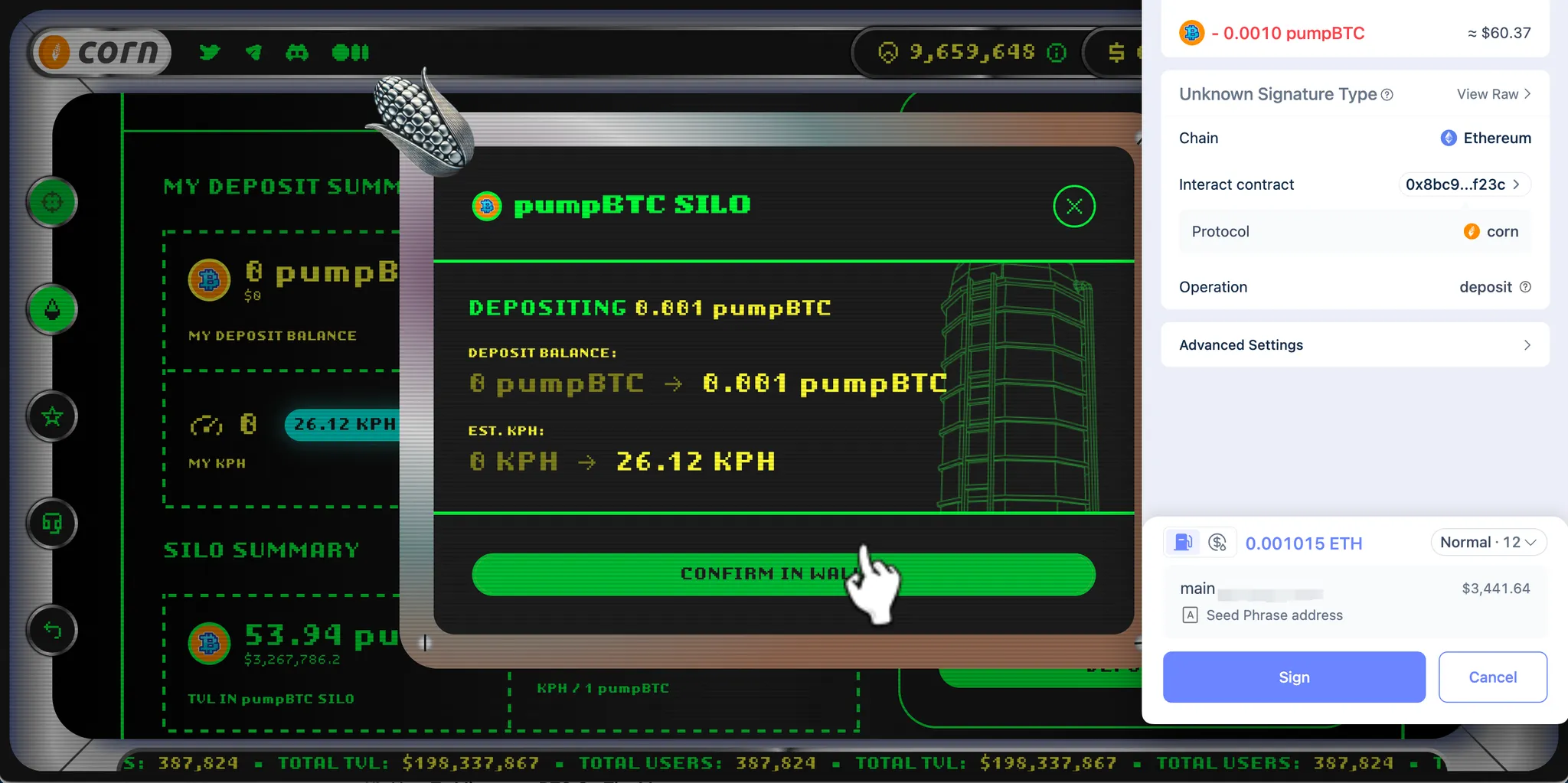
**Step4:** Click the **‘DEPOSIT’** button again on the page, and complete the pumpBTC deposit transaction in your wallet.

<figure><img src="https://1508034360-files.gitbook.io/~/files/v0/b/gitbook-x-prod.appspot.com/o/spaces%2FATMz4vtiiTKoraOnqc0H%2Fuploads%2FpKnBuUwT9nVsnZ2SZo8M%2Fimage.png?alt=media&#x26;token=55aee046-5539-4112-b53e-1ea36e59e5b9" alt=""><figcaption></figcaption></figure>

<figure><img src="https://1508034360-files.gitbook.io/~/files/v0/b/gitbook-x-prod.appspot.com/o/spaces%2FATMz4vtiiTKoraOnqc0H%2Fuploads%2FN3UbdIuZ9no2kQGkltSY%2Fimage.png?alt=media&#x26;token=c5eeca9e-5e1e-4546-8905-e1ef9f3a63db" alt=""><figcaption></figcaption></figure>

**Step5:** When the following prompt appears on your page, it means that the deposit has been successful.

<figure><img src="https://1508034360-files.gitbook.io/~/files/v0/b/gitbook-x-prod.appspot.com/o/spaces%2FATMz4vtiiTKoraOnqc0H%2Fuploads%2FKF2BSQDM4scn71nLD5Ma%2Fimage.png?alt=media&#x26;token=bea2b97b-1667-4e31-9131-00717a52c5b1" alt=""><figcaption></figcaption></figure>